Share Extension

Objective
This blog post briefly describes Apple’s Extensibility feature in iOS 8. It allows you to extend custom functionality and its content of your application, and available it for user when they are using other applications.
App extension allows access to Share menu with any of available service like action for available browser. Extensions are available along with its related app. So, if you want extension then you must have to install its associated application.
There are the numbers of extensions available in iOS 8 while apple also introduces widgets and custom keyboards as extension. Number of available extensions are describe as per following.
- Share
- Action
- Photo Editing
- Storage Provider
- Today (Widgets)
- Custom Keyboard
But, here we are focusing on how to use and implement share extension in iOS8. Share extension provides easier way when you are working with iOS8. It allows you to share any kind of content directly with your application or any website.
Share Extension can be used by clicking on share button in any of application and you will get share menu as following image. For Example, Go to safari >> tap on share button.
You will get something like following:
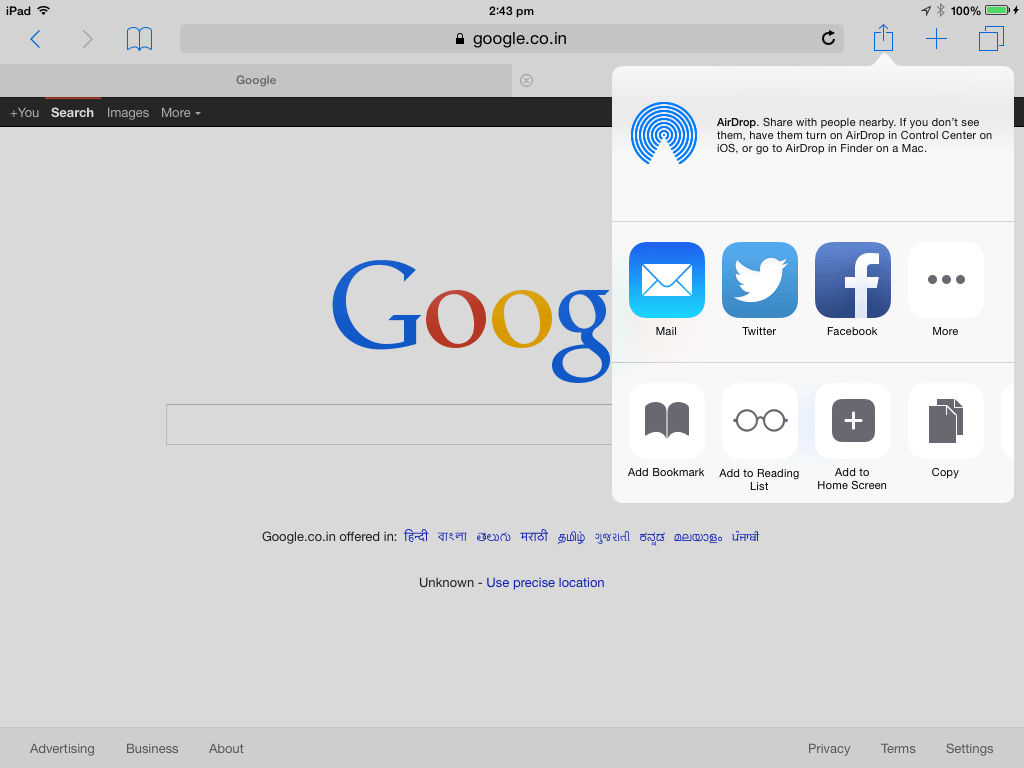
Share menu will be available with options available in top menu like Mail, Twitter, Facebook and More options. When you tape on More button you will get something like following image.
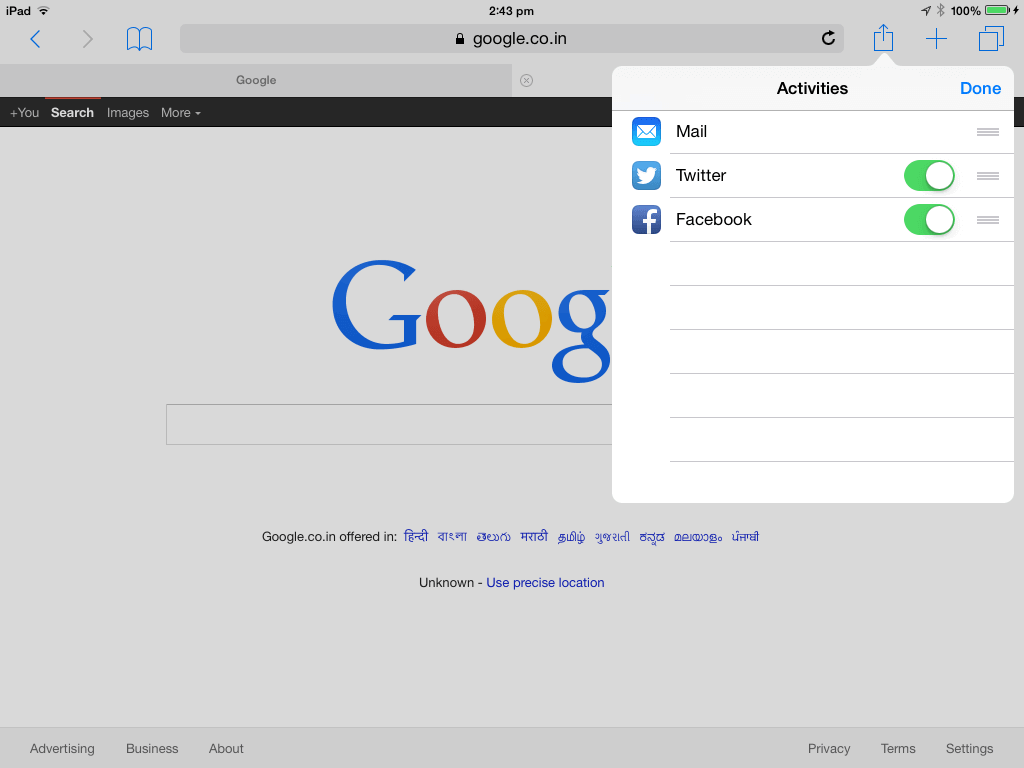
Here you can see the list of all installed extensions, it also enables those that you want to use and disable those that you won’t. It also allows you to reorder available extensions by tapping on it and move it up and down.
Share menu will be available with options available in top menu like Mail, Twitter, Facebook and More options. When you tape on More button you will get something like following image.
Here you can see the list of all installed extensions, it also enables those that you want to use and disable those that you won’t. It also allows you to reorder available extensions by tapping on it and move it up and down.
Following are the steps to implement ShareExtension. Here we are creating and extension that allows you to share website link and content from the available browsers to your application.
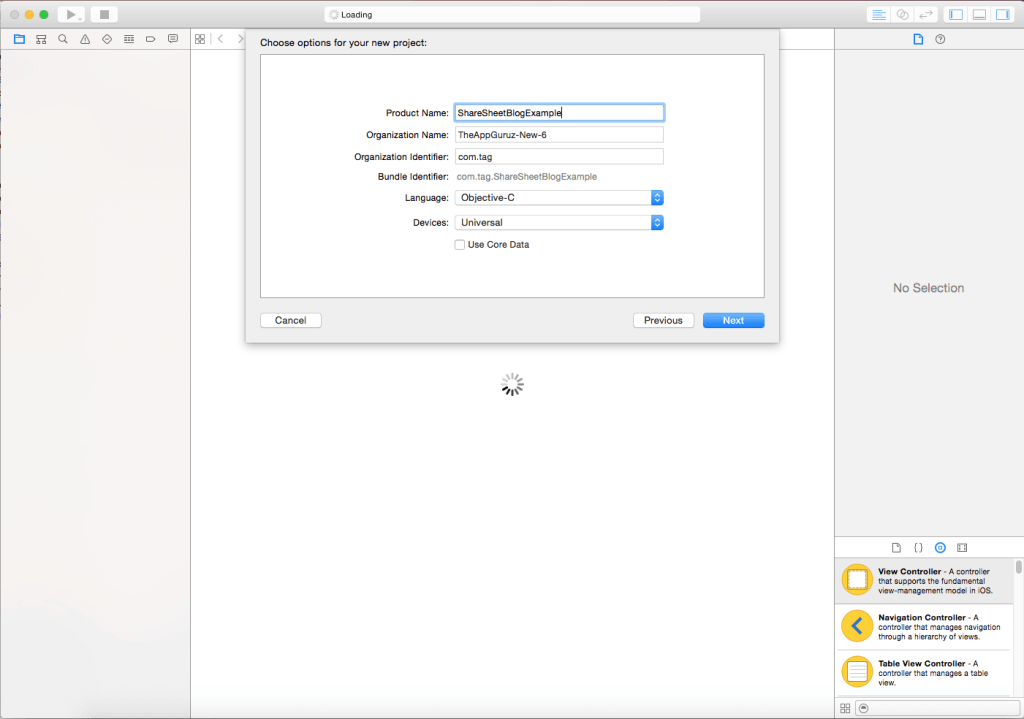
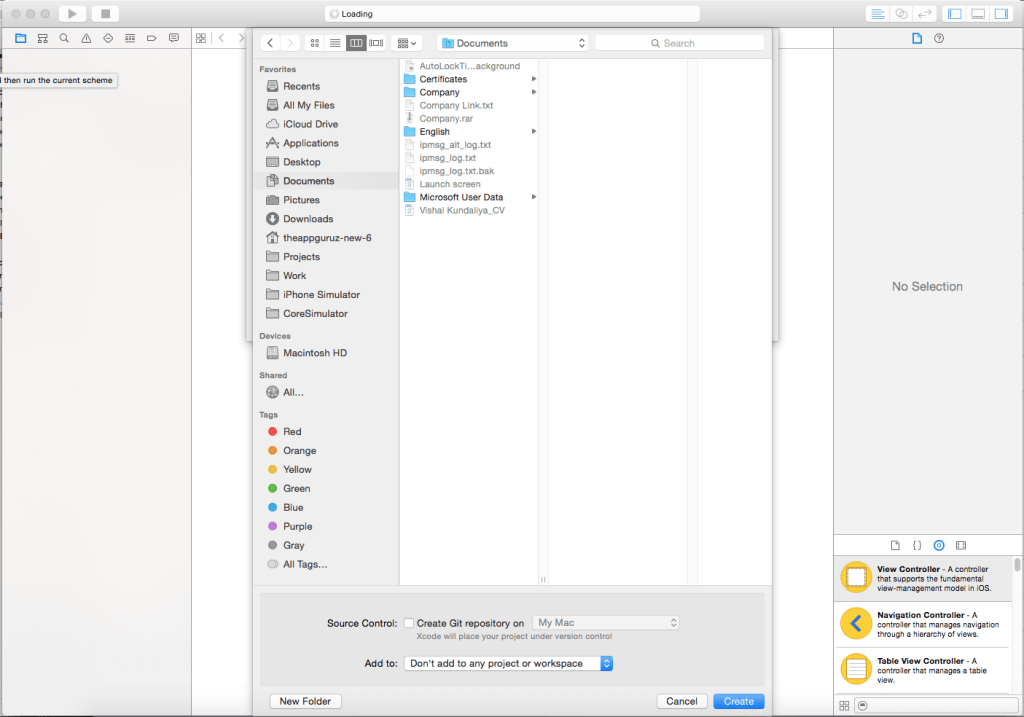
Step 1 Create Xcode project
First of all create new Xcode project and named it as ShareSheetBlogExample and choose the location where you actually want to sore it.
Step 2 Create Shared extension
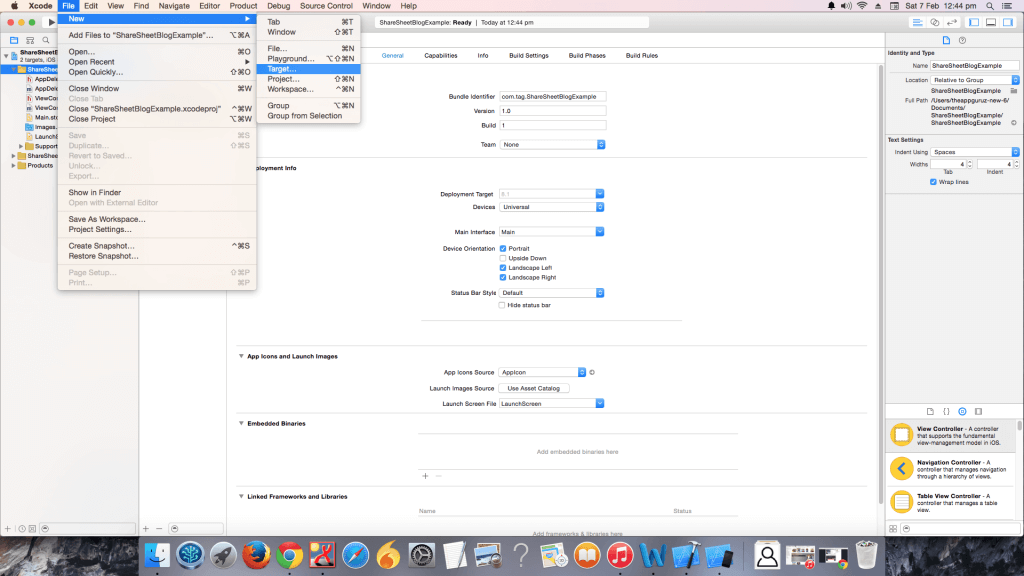
Now create Shared extension, for that go to File >> New >> Target
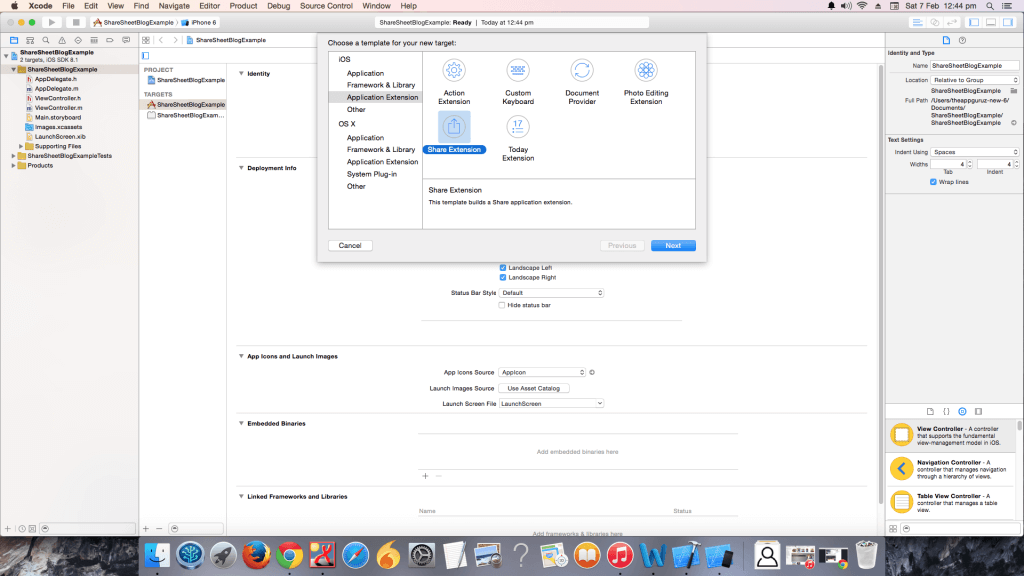
Choose shared extension as following:
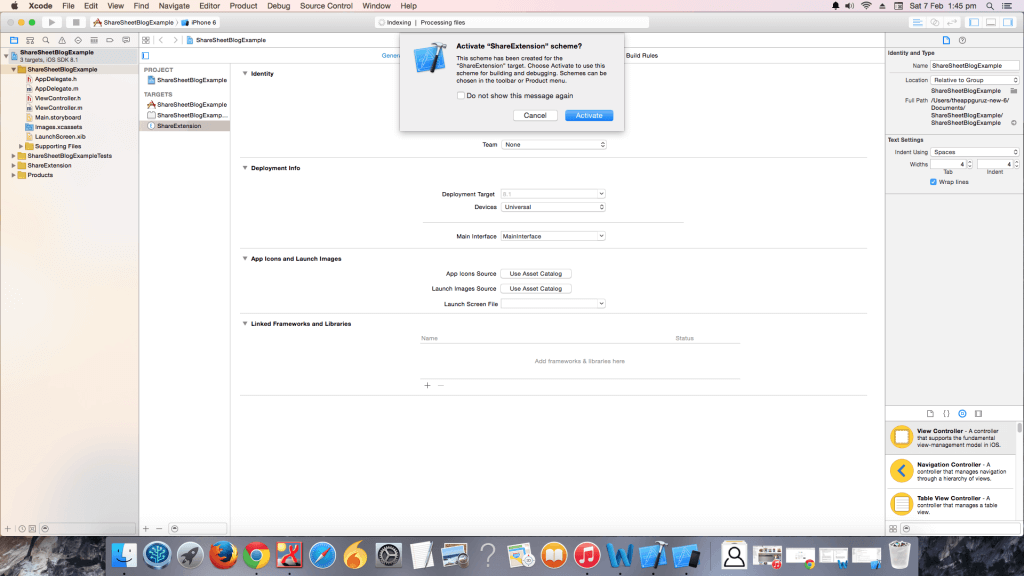
Step 3 Give appropriate name & save
Give appropriate name and save it. It will ask you as following, choose Activate.
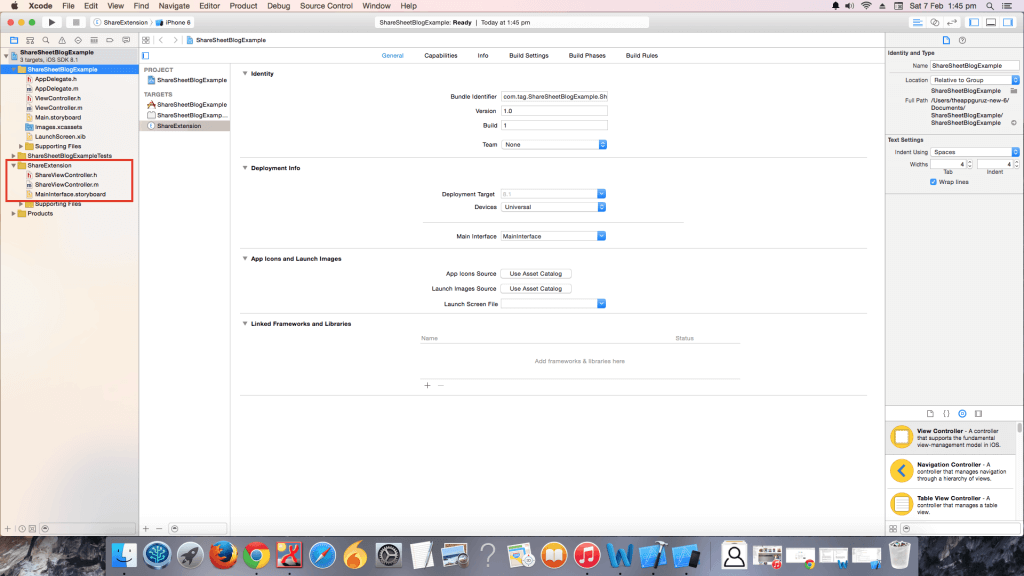
It will include following list of file in your project folder:
Step 4 Run app using Safari
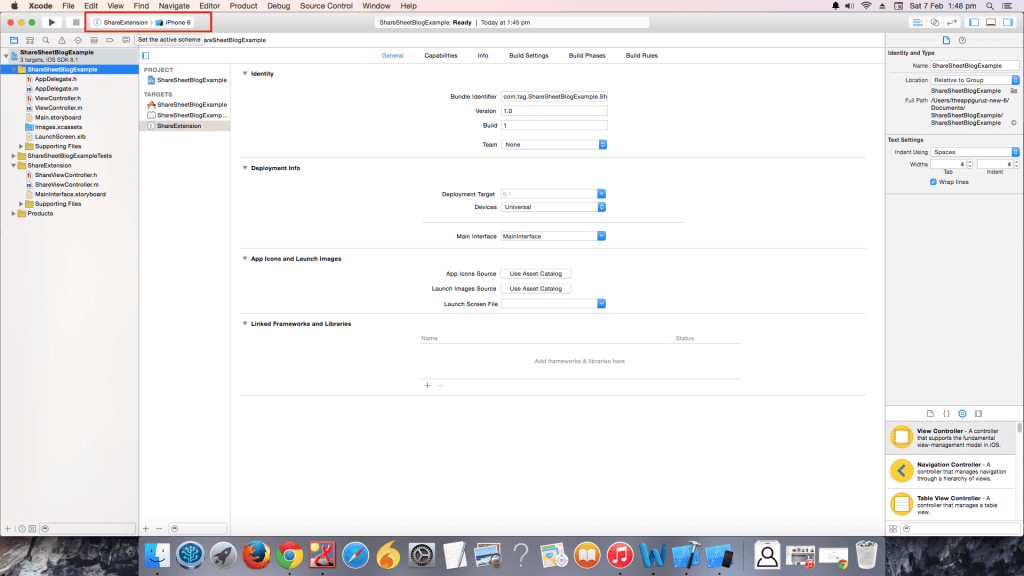
Now build and run your extension by choosing extension from active scheme as following.
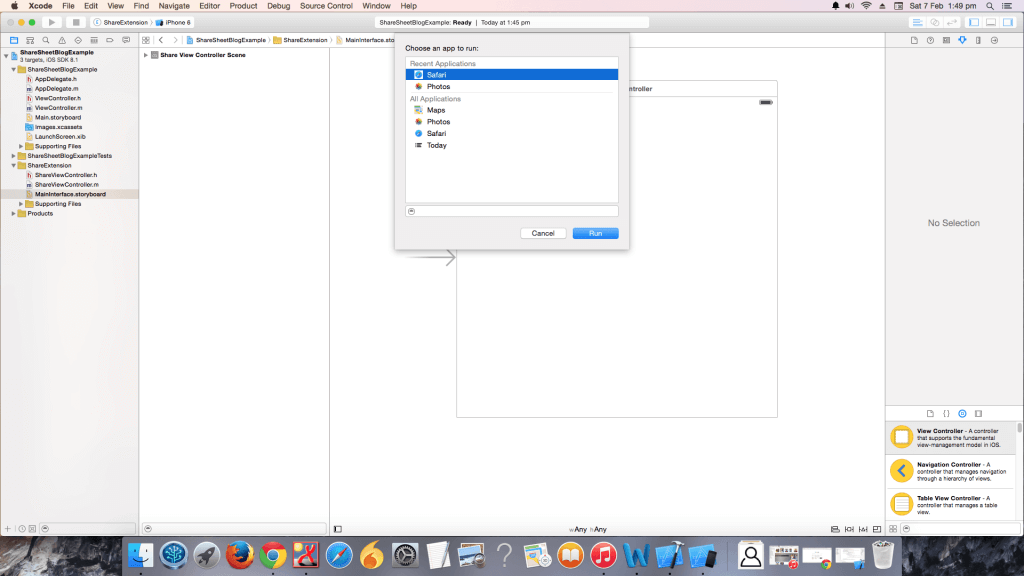
It will ask you to choose an app to run , here we are going to select safari and press run.
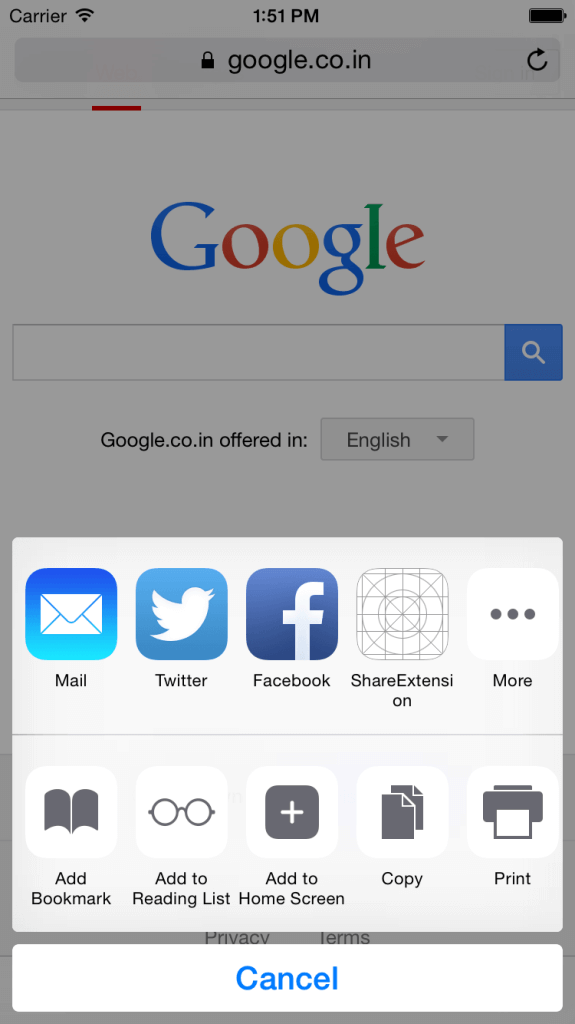
It will directly open safari and load webpage. Now click on share button and share menu will be displayed. Our extension automatically installed in top menu as following. if you don’t get extension then click on more and enable your extension respectively.
Now click on that and you will get as following:
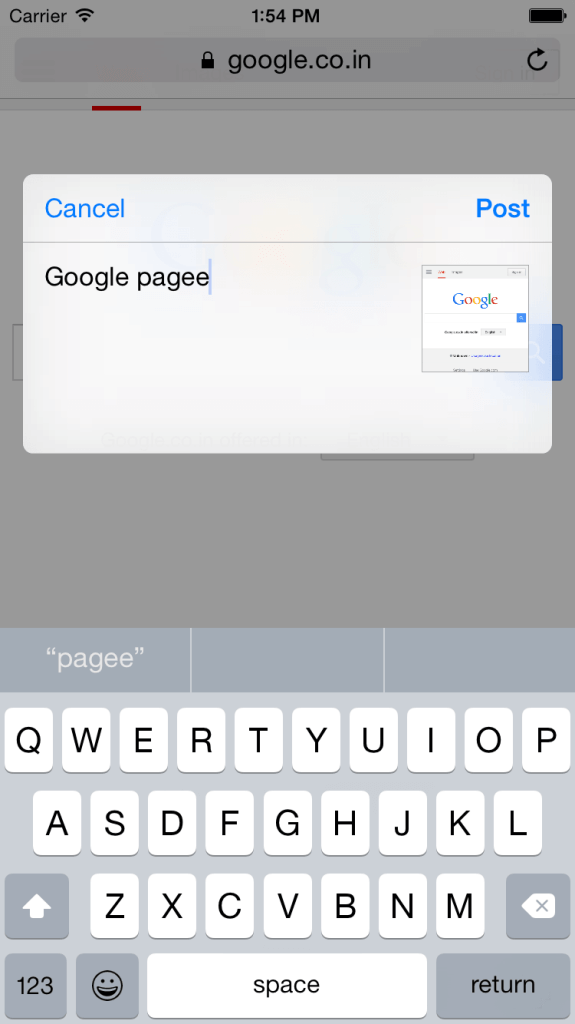
Composer sheet is available with content and image. Click on the Post button. But it happens nothing. Now if you want to handle delegate method for that and when user click on post button, respected content will be share to your application you have go through the following number of steps.
Following steps describe line of code that you have to written in your share extension class files.
Step 5 Code for ShareViewController.h file
Now click on ShareViewController.h file and write following line of code.
#import <UIKit/UIKit.h>
#import <Social/Social.h>
@interface ShareViewController : SLComposeServiceViewController
{
NSUserDefaults *sharedUserDefaults;
NSExtensionItem *inputItem;
}
@end
Step 6 Use of AppGroups
Now we want our content and website link will be shared with our application for that we must have to use AppGroups in iOS. It helps you to share data between your application and shared extension.
When user will click on post button following method will be called.
- (void)didSelectPost
{
// This is called after the user selects Post. Do the upload of contentText and/or NSExtensionContext attachments.
// Inform the host that we're done, so it un-blocks its UI. Note: Alternatively you could call super's -didSelectPost, which will similarly complete the extension context.
[self.extensionContext completeRequestReturningItems:@[] completionHandler:nil];
}
@import MobileCoreServices;
static NSString *const AppGroupId = @"group.tag.AppGroupDemo";
@interface ShareViewController ()
@end
@implementation ShareViewController
- (BOOL)isContentValid
{
// Do validation of contentText and/or NSExtensionContext attachments here
return YES;
}
-(void)viewDidLoad
{
sharedUserDefaults = [[NSUserDefaults alloc] initWithSuiteName:AppGroupId];
// here you must have to provide your app group id that you already created
}
{
// This is called after the user selects Post. Do the upload of contentText and/or NSExtensionContext attachments.
// Inform the host that we're done, so it un-blocks its UI. Note: Alternatively you could call super's -didSelectPost, which will similarly complete the extension context.
inputItem = self.extensionContext.inputItems.firstObject;
NSItemProvider *urlItemProvider = [[inputItem.userInfo valueForKey:NSExtensionItemAttachmentsKey] objectAtIndex:0];
if ([urlItemProvider hasItemConformingToTypeIdentifier:(__bridge NSString *)kUTTypeURL])
{
[urlItemProvider loadItemForTypeIdentifier:(__bridge NSString *)kUTTypeURL options:nil completionHandler:^(NSURL *url, NSError *error)
{
if (error)
{
NSLog(@"Error occured");
}
else
{
NSMutableArray *arrSites;
if ([sharedUserDefaults valueForKey:@"SharedExtension"])
arrSites = [sharedUserDefaults valueForKey:@"SharedExtension"];
else
arrSites = [[NSMutableArray alloc] init];
NSDictionary *dictSite = [NSDictionary dictionaryWithObjectsAndKeys:self.contentText, @"Text", url.absoluteString, @"URL",nil];
[arrSites addObject:dictSite];
[sharedUserDefaults setObject:arrSites forKey:@"SharedExtension"];
[sharedUserDefaults synchronize];
UIAlertController * alert= [UIAlertController alertControllerWithTitle:@"Success"
message:@"Posted Successfully." preferredStyle:UIAlertControllerStyleAlert];
UIAlertAction* ok = [UIAlertAction actionWithTitle:@"OK" style:UIAlertActionStyleDefault handler:^(UIAlertAction * action)
{
[UIView animateWithDuration:0.20 animations:^{
self.view.transform = CGAffineTransformMakeTranslation(0, self.view.frame.size.height);
}
completion:^(BOOL finished)
{
[self.extensionContext completeRequestReturningItems:nil completionHandler:nil];
}];
}];
[alert addAction:ok];
[self presentViewController:alert animated:YES completion:nil];
}
}];
}
}
#import "WebCell.h"
@interface ViewController : UIViewController
{
NSMutableArray *arrSites;
NSUserDefaults *sharedUserDefaults;
}
@end
static NSString *const AppGroupId = @"group.tag.AppGroupDemo";
@interface ViewController ()
@end
@implementation ViewController
- (void)viewDidLoad
{
[super viewDidLoad];
}
-(void)viewWillAppear:(BOOL)animated
{
sharedUserDefaults = [[NSUserDefaults alloc] initWithSuiteName:AppGroupId];
arrSites = [NSMutableArray arrayWithArray:[sharedUserDefaults valueForKey:@"SharedExtension"]];
}
-(NSInteger)tableView:(UITableView *)tableView numberOfRowsInSection:(NSInteger)section
{
return arrSites.count;
}
-(UITableViewCell *)tableView:(UITableView *)tableView cellForRowAtIndexPath:(NSIndexPath *)indexPath
{
WebCell *cell = [tableView dequeueReusableCellWithIdentifier:@"Cell"];
cell.lblSite.text = [[arrSites objectAtIndex:indexPath.row] valueForKey:@"URL"];
cell.lblContent.text = [[arrSites objectAtIndex:indexPath.row] valueForKey:@"Text"];
return cell;
}
-(void)tableView:(UITableView *)tableView didSelectRowAtIndexPath:(NSIndexPath *)indexPath
{
[[UIApplication sharedApplication] openURL:[NSURL URLWithString:[[arrSites objectAtIndex:indexPath.row] valueForKey:@"URL"]]];
}
I hope you find this blog is very helpful while working on Share Extension in iOS 8. Let me know in comment if you have any questions regarding iOS 8. I will reply you ASAP.
// This is called after the user selects Post. Do the upload of contentText and/or NSExtensionContext attachments.
// Inform the host that we're done, so it un-blocks its UI. Note: Alternatively you could call super's -didSelectPost, which will similarly complete the extension context.
[self.extensionContext completeRequestReturningItems:@[] completionHandler:nil];
}
Step 7 Code for ShareViewController.m file
Write following line of code in your ShareViewController.m file
#import "ShareViewController.h"
@import MobileCoreServices;
static NSString *const AppGroupId = @"group.tag.AppGroupDemo";
@interface ShareViewController ()
@end
@implementation ShareViewController
- (BOOL)isContentValid
{
// Do validation of contentText and/or NSExtensionContext attachments here
return YES;
}
-(void)viewDidLoad
{
sharedUserDefaults = [[NSUserDefaults alloc] initWithSuiteName:AppGroupId];
// here you must have to provide your app group id that you already created
}
Step 8 Code for didSelectPost method
Write following line of code in didSelectPost() method as following.
- (void)didSelectPost
{
// This is called after the user selects Post. Do the upload of contentText and/or NSExtensionContext attachments.
// Inform the host that we're done, so it un-blocks its UI. Note: Alternatively you could call super's -didSelectPost, which will similarly complete the extension context.
inputItem = self.extensionContext.inputItems.firstObject;
NSItemProvider *urlItemProvider = [[inputItem.userInfo valueForKey:NSExtensionItemAttachmentsKey] objectAtIndex:0];
if ([urlItemProvider hasItemConformingToTypeIdentifier:(__bridge NSString *)kUTTypeURL])
{
[urlItemProvider loadItemForTypeIdentifier:(__bridge NSString *)kUTTypeURL options:nil completionHandler:^(NSURL *url, NSError *error)
{
if (error)
{
NSLog(@"Error occured");
}
else
{
NSMutableArray *arrSites;
if ([sharedUserDefaults valueForKey:@"SharedExtension"])
arrSites = [sharedUserDefaults valueForKey:@"SharedExtension"];
else
arrSites = [[NSMutableArray alloc] init];
NSDictionary *dictSite = [NSDictionary dictionaryWithObjectsAndKeys:self.contentText, @"Text", url.absoluteString, @"URL",nil];
[arrSites addObject:dictSite];
[sharedUserDefaults setObject:arrSites forKey:@"SharedExtension"];
[sharedUserDefaults synchronize];
UIAlertController * alert= [UIAlertController alertControllerWithTitle:@"Success"
message:@"Posted Successfully." preferredStyle:UIAlertControllerStyleAlert];
UIAlertAction* ok = [UIAlertAction actionWithTitle:@"OK" style:UIAlertActionStyleDefault handler:^(UIAlertAction * action)
{
[UIView animateWithDuration:0.20 animations:^{
self.view.transform = CGAffineTransformMakeTranslation(0, self.view.frame.size.height);
}
completion:^(BOOL finished)
{
[self.extensionContext completeRequestReturningItems:nil completionHandler:nil];
}];
}];
[alert addAction:ok];
[self presentViewController:alert animated:YES completion:nil];
}
}];
}
}
Now, when you will run shared extension and share data with your extension, website link and your content will be saved to user defaults via app groups. Now you have to access it through your application and display it in UITableView.
Step 9 Code for ViewController.h file
For that you have to write following line of code in ViewController.h file of your project.
#import <UIKit/UIKit.h>
#import "WebCell.h"
@interface ViewController : UIViewController
{
NSMutableArray *arrSites;
NSUserDefaults *sharedUserDefaults;
}
@end
Step 10 Code for ViewController.m file
Please write following line of in your ViewController.m file. Which data we get that we shared through extension and display it in table view.
#import "ViewController.h"
static NSString *const AppGroupId = @"group.tag.AppGroupDemo";
@interface ViewController ()
@end
@implementation ViewController
- (void)viewDidLoad
{
[super viewDidLoad];
}
-(void)viewWillAppear:(BOOL)animated
{
sharedUserDefaults = [[NSUserDefaults alloc] initWithSuiteName:AppGroupId];
arrSites = [NSMutableArray arrayWithArray:[sharedUserDefaults valueForKey:@"SharedExtension"]];
}
-(NSInteger)tableView:(UITableView *)tableView numberOfRowsInSection:(NSInteger)section
{
return arrSites.count;
}
-(UITableViewCell *)tableView:(UITableView *)tableView cellForRowAtIndexPath:(NSIndexPath *)indexPath
{
WebCell *cell = [tableView dequeueReusableCellWithIdentifier:@"Cell"];
cell.lblSite.text = [[arrSites objectAtIndex:indexPath.row] valueForKey:@"URL"];
cell.lblContent.text = [[arrSites objectAtIndex:indexPath.row] valueForKey:@"Text"];
return cell;
}
-(void)tableView:(UITableView *)tableView didSelectRowAtIndexPath:(NSIndexPath *)indexPath
{
[[UIApplication sharedApplication] openURL:[NSURL URLWithString:[[arrSites objectAtIndex:indexPath.row] valueForKey:@"URL"]]];
}
ScreenShots:
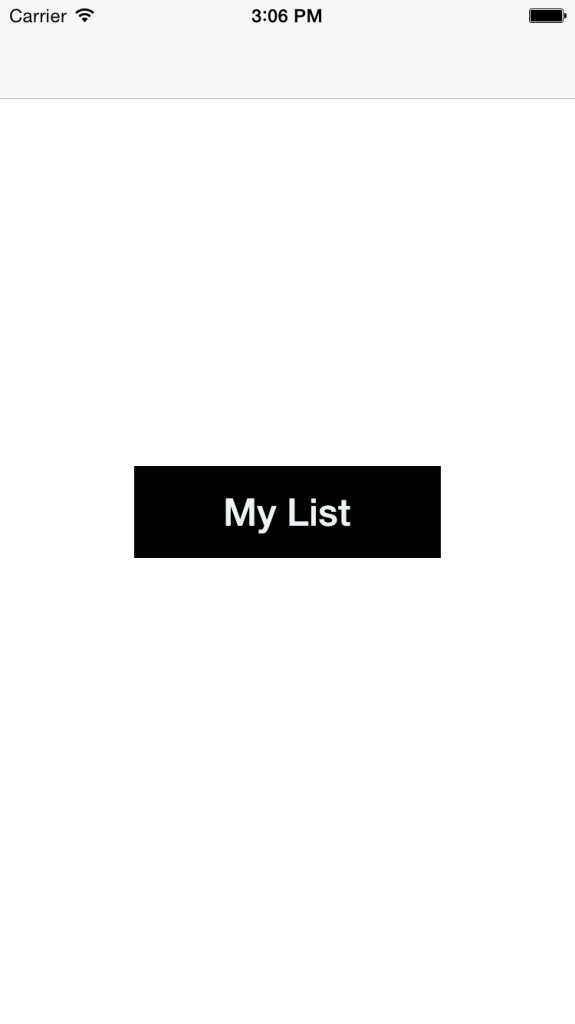
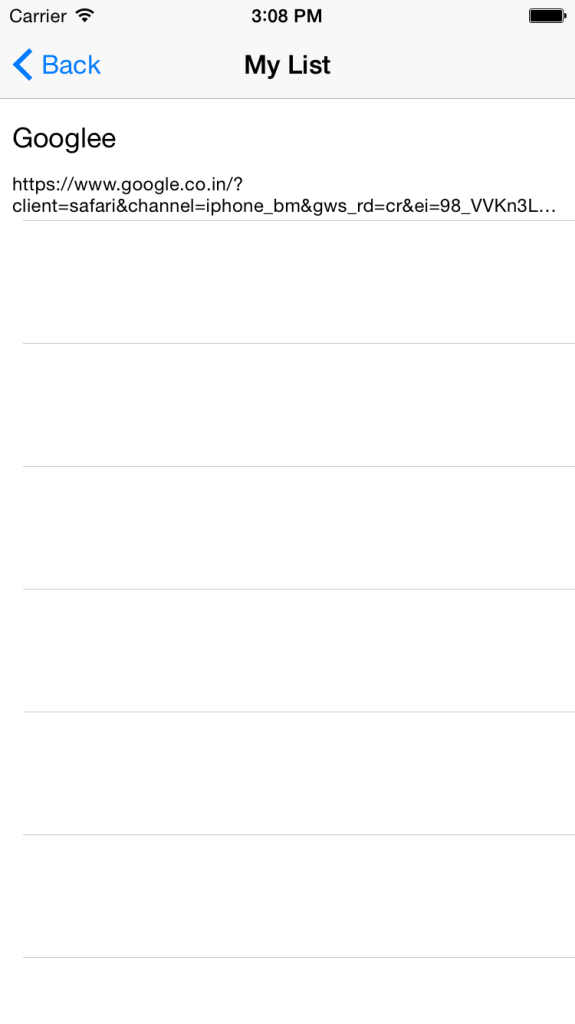
I hope you find this blog is very helpful while working on Share Extension in iOS 8. Let me know in comment if you have any questions regarding iOS 8. I will reply you ASAP.
Comments
Post a Comment
Thank You.