React Native ActivityIndicator

ActivityIndicator is used to display a circular loading indicator.

Props

PropsDescription
animatingOption to show the indicator (bydefault it is true) or hide it (false).
sizeSet the size of indicator ('small','large', number). The default size is small. Number format support only in android.
colorSet the foreground color of the spinner (default is gray).
hidesWhenStoppedIt provides an option to show or hide the indicator when there is no animating (true by default).

React Native ActivityIndicator Example

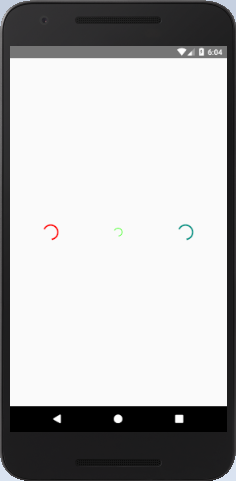
In this example, the animating property set the activity indicator to true, and it is visible on the screen. When the component mounts, the animated activity indicator will be closed after six seconds using the closeActivityIndicator() method.
  1. import React, { Component } from 'react'  
  2. import {  
  3.     ActivityIndicator,  
  4.     AppRegistry,  
  5.     StyleSheet,  
  6.     Text,  
  7.     View,  
  8. } from 'react-native'  
  9.   
  10. export default class ActivityIndicatorDemo extends Component {  
  11.     state = { animating: true }  
  12.     closeActivityIndicator = () => setTimeout(() => this.setState({  
  13.         animating: false }), 6000)  
  14.     componentDidMount = () => this.closeActivityIndicator()  
  15.     render() {  
  16.         const animating = this.state.animating  
  17.         return (  
  18.             <View style={[styles.container, styles.horizontal]} >  
  19.                 <ActivityIndicator  animating = {animating} size="large" color="#ff0000" />  
  20.                 <ActivityIndicator size="small" color="#44ff00" />  
  21.                 <ActivityIndicator size="large" color="#rtwrw" />  
  22.             </View>  
  23.         )  
  24.     }  
  25. }  
  26.   
  27. const styles = StyleSheet.create({  
  28.     container: {  
  29.         flex: 1,  
  30.         justifyContent: 'center'  
  31.     },  
  32.     horizontal: {  
  33.         flexDirection: 'row',  
  34.         justifyContent: 'space-around',  
  35.         padding: 10  
  36.     }  
  37. })  
  38.   
  39. AppRegistry.registerComponent('App', () => ActivityIndicatorDemo)  

Output:

React Native ActivityIndicator 

Comments

Popular Posts

React Native - Text Input

In this chapter, we will show you how to work with  TextInput  elements in React Native. The Home component will import and render inputs. App.js import React from 'react' ; import Inputs from './inputs.js' const App = () => { return ( < Inputs /> ) } export default App Inputs We will define the initial state. After defining the initial state, we will create the  handleEmail  and the  handlePassword  functions. These functions are used for updating state. The  login()  function will just alert the current value of the state. We will also add some other properties to text inputs to disable auto capitalisation, remove the bottom border on Android devices and set a placeholder. inputs.js import React , { Component } from 'react' import { View , Text , TouchableOpacity , TextInput , StyleSheet } from 'react-native' class Inputs extends Component { state = { ...

An introduction to Size Classes for Xcode 8

Introduction to Size Classes for Xcode In iOS 8, Apple introduced  size classes , a way to describe any device in any orientation. Size classes rely heavily on auto layout. Until iOS 8, you could escape auto layout. IN iOS8, Apple changed several UIKit classes to depend on size classes. Modal views, popovers, split views, and image assets directly use size classes to determine how to display an image. Identical code to present a popover on an iPad  causes a iPhone to present a modal view. Different Size Classes There are two sizes for size classes:  compact , and  regular . Sometime you’ll hear about any.  Any  is the generic size that works with anything. The default Xcode layout, is  width:any height:any . This layout is for all cases. The Horizontal and vertical dimensions are called  traits , and can be accessed in code from an instance of  UITraitCollection . The  compact  size descr...

What are the Alternatives of device UDID in iOS? - iOS7 / iOS 6 / iOS 5 – Get Device Unique Identifier UDID

Get Device Unique Identifier UDID Following code will help you to get the unique-device-identifier known as UDID. No matter what iOS user is using, you can get the UDID of the current iOS device by following code. - ( NSString *)UDID { NSString *uuidString = nil ; // get os version NSUInteger currentOSVersion = [[[[[UIDevice currentDevice ] systemVersion ] componentsSeparatedByString: @" . " ] objectAtIndex: 0 ] integerValue ]; if (currentOSVersion <= 5 ) { if ([[ NSUserDefaults standardUserDefaults ] valueForKey: @" udid " ]) { uuidString = [[ NSUserDefaults standardDefaults ] valueForKey: @" udid " ]; } else { CFUUIDRef uuidRef = CFUUIDCreate ( kCFAllocatorDefault ); uuidString = ( NSString *) CFBridgingRelease ( CFUUIDCreateString ( NULL ,uuidRef)); CFRelease (uuidRef); [[ NSUserDefaults standardUserDefaults ] setObject: uuidString ForKey: @" udid " ]; [[ NSUserDefaults standardUserDefaults ] synchro...