Getting Started
To start create a new React Native app (via
react-native init, create-react-native-app, or the expo cli) and add the following to App.js.import React from 'react';
import { StyleSheet, View, Dimensions, Image } from 'react-native';
const w = Dimensions.get('window');
const styles = StyleSheet.create({
container: {
flex: 1,
alignItems: 'center',
justifyContent: 'center',
},
});
export default class App extends React.Component {
render() {
return (
<View style={styles.container}>
<Image
source={{ uri: `https://images.pexels.com/photos/671557/pexels-photo-671557.jpeg?w=${w.width * 2}&buster=${Math.random()}` }}
style={{ width: w.width, height: w.width }}
resizeMode="cover"
/>
</View>
);
}
}
Feel the Pain
Like I said before — as a developer you’ve probably got a pretty decent internet connection.
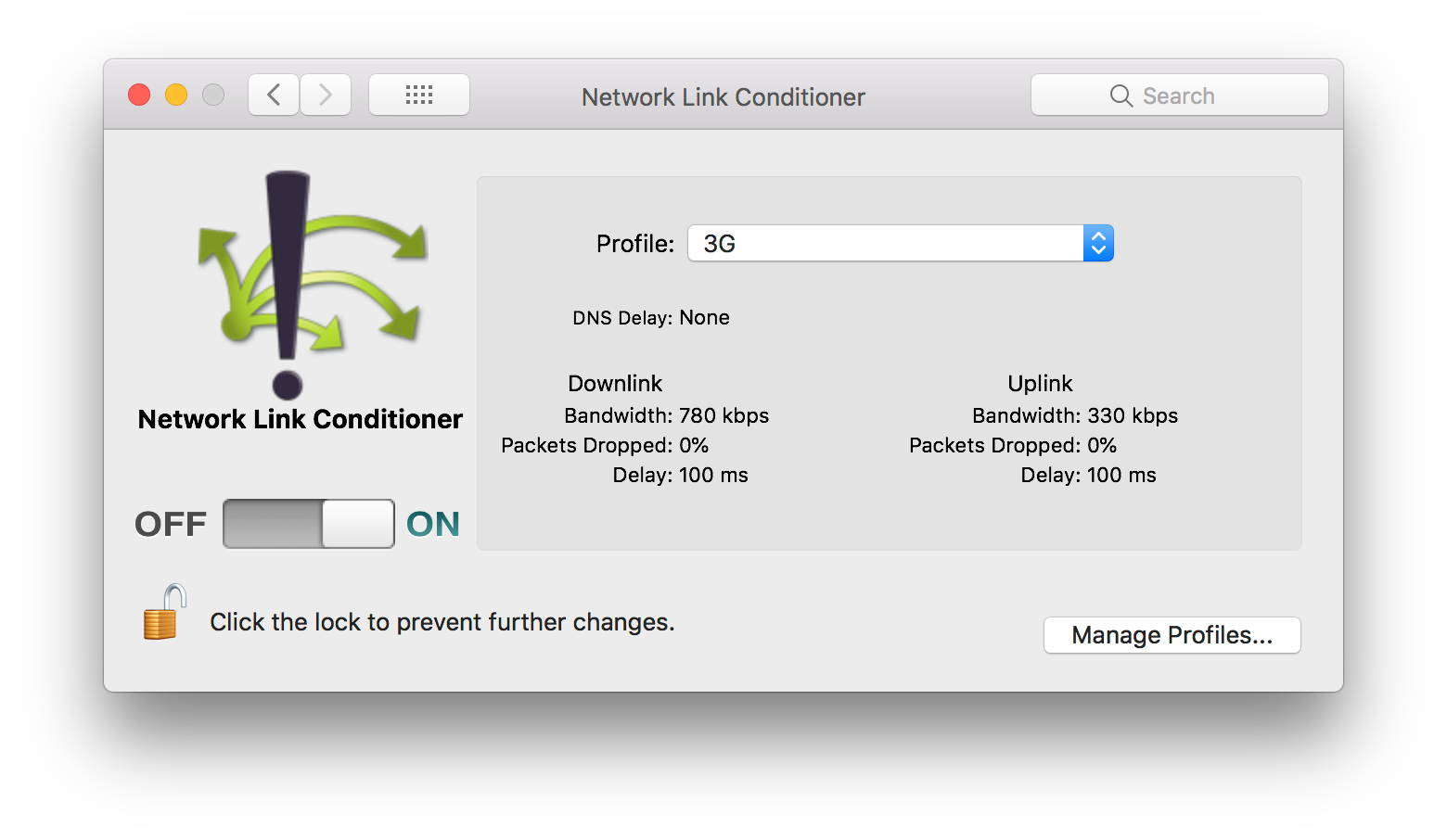
Let’s change that.It will allow you to simulate just about any network condition you need. Just remember to turn it off before you start trying to stream video.
Enable it and set it to the “3G” profile.

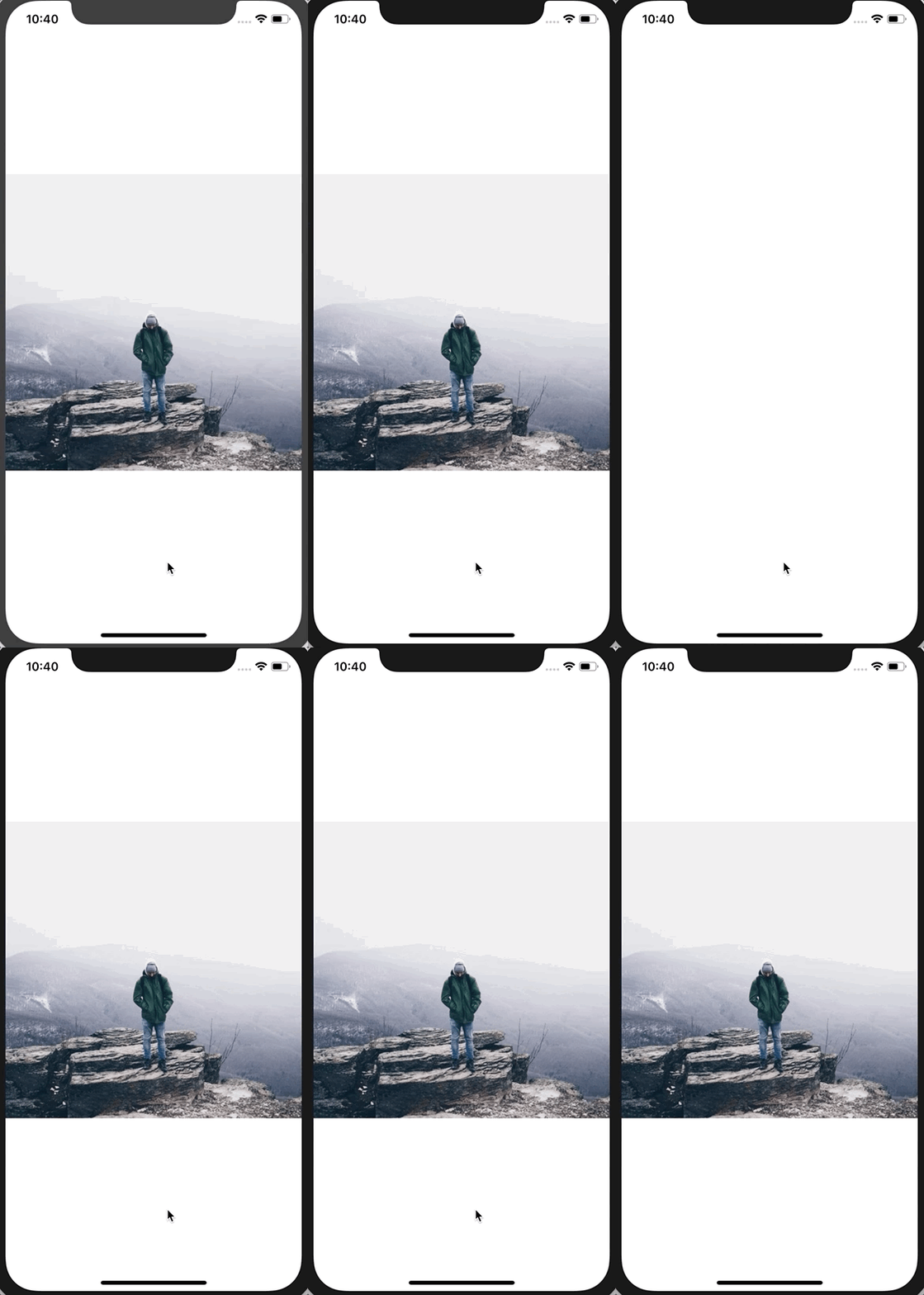
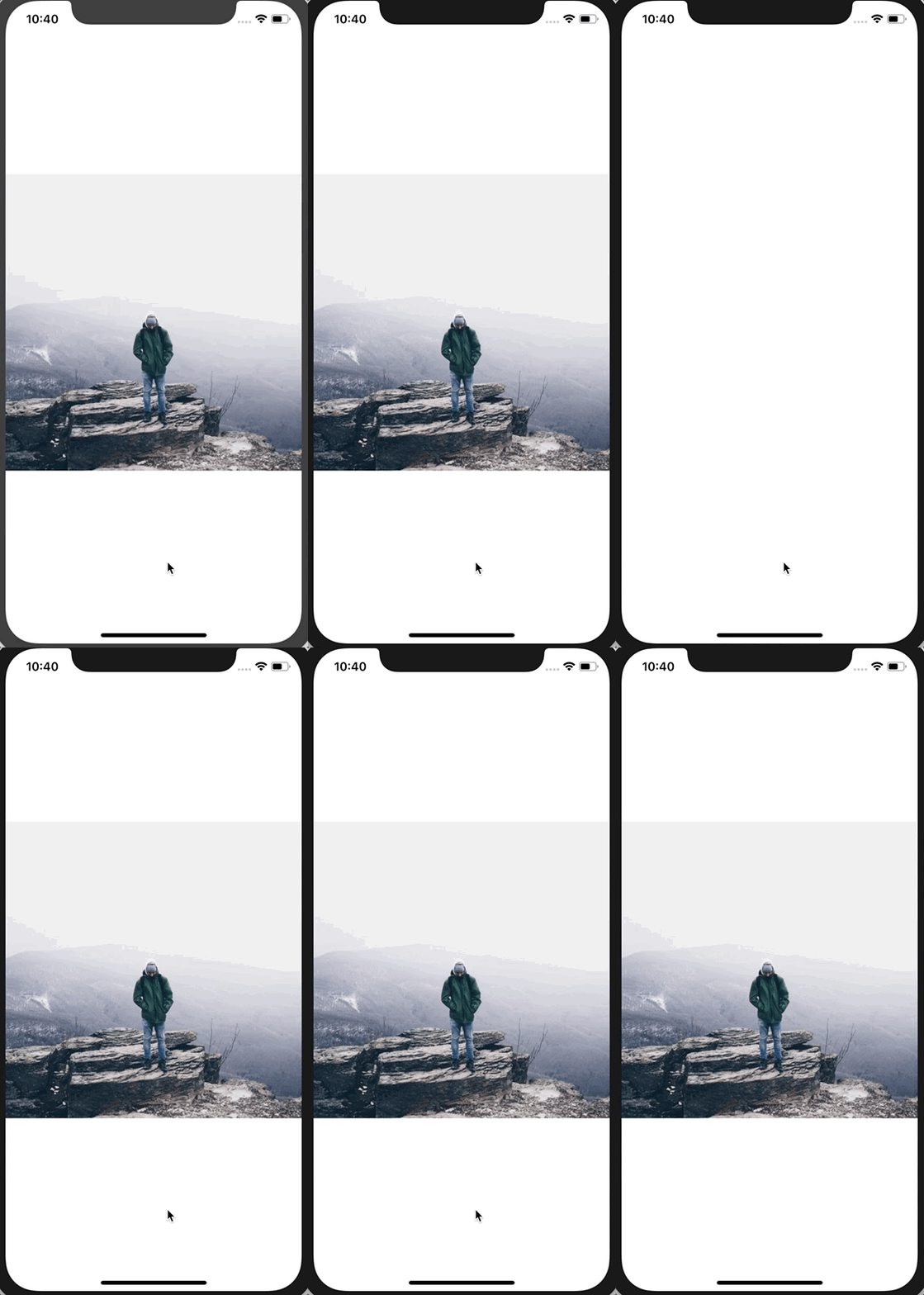
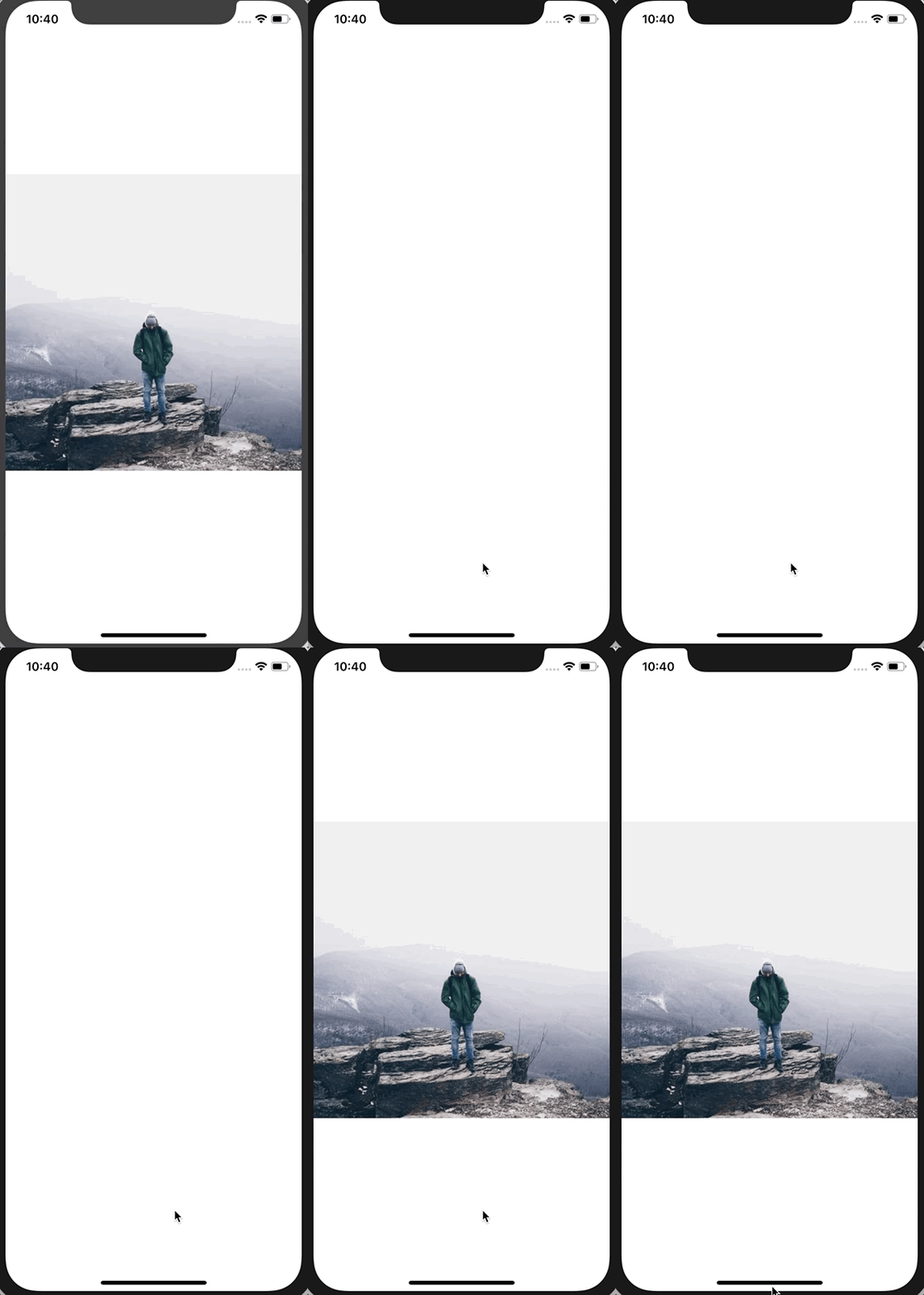
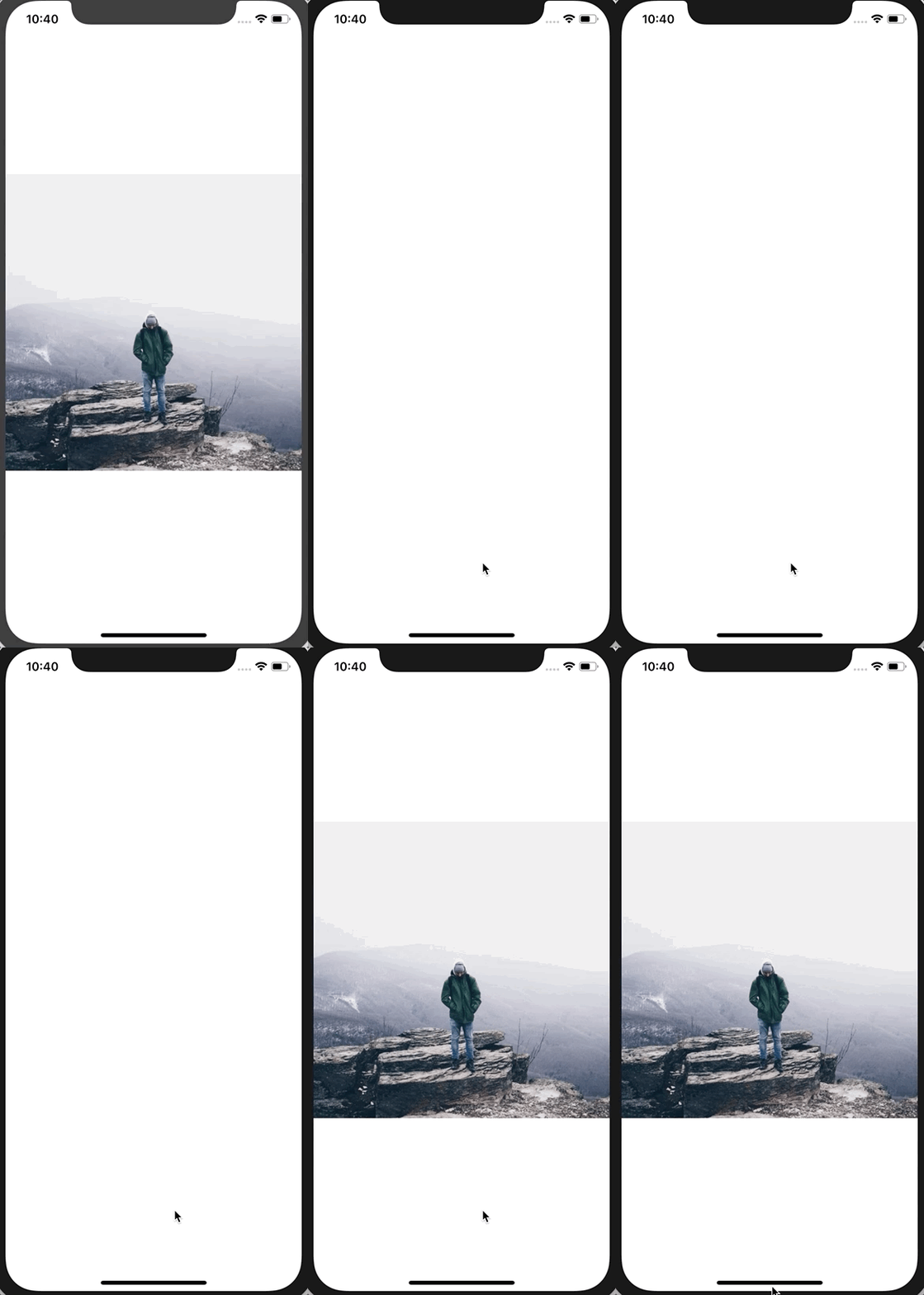
Here’s a comparison of the starter with Network Link Conditioner off vs. on.
ProgressiveImage Component
To replace the
Image component we'll create a new component called ProgressiveImage. The goal with this component is to allow it to work exactly like the normal Image component just with some extra features:- Colored background filling in where the image will be
- Ability to pass a thumbnail image
First let’s put the foundation in place:
// ProgressiveImage.jsimport React from 'react';
import { View, StyleSheet, Image } from 'react-native';const styles = StyleSheet.create({});class ProgressiveImage extends React.Component {
  render() {
    return <Image {...this.props} />
  }
}export default ProgressiveImage;
We’re using the spread syntax to pass all of
this.props down to the Image component so that everything works as expected without us having to manually define each and every prop.
Then replace
Image in App.js with the new ProgressiveImagecomponent.// App.jsimport React from 'react'; import { StyleSheet, View, Dimensions } from 'react-native'; import ProgressiveImage from './ProgressiveImage';// ...export default class App extends React.Component { render() { return ( <View style={styles.container}> <ProgressiveImage source={{ uri: `https://images.pexels.com/photos/671557/pexels-photo-671557.jpeg?w=${w.width * 2}&buster=${Math.random()}` }} style={{ width: w.width, height: w.width }} resizeMode="cover" /> </View> ); } }
Everything should work exactly the same as it did before.
Setting the Background Color
When you’re loading a remote image you need to specify the width and height of the image for it to render. We’ll leverage that requirement to allow us to easily set a default background color.
import React from 'react';
import { View, StyleSheet, Image } from 'react-native';const styles = StyleSheet.create({
  imageOverlay: {
    position: 'absolute',
    left: 0,
    right: 0,
    bottom: 0,
    top: 0,
  },
  container: {
    backgroundColor: '#e1e4e8',
  },
});class ProgressiveImage extends React.Component {
  render() {
    return (
      <View style={styles.container}>
        <Image {...this.props} />
      </View>
    );
  }
}export default ProgressiveImage;
First we create a
container style with our background color and then wrap the Image component in a View (with the new style assigned to it).
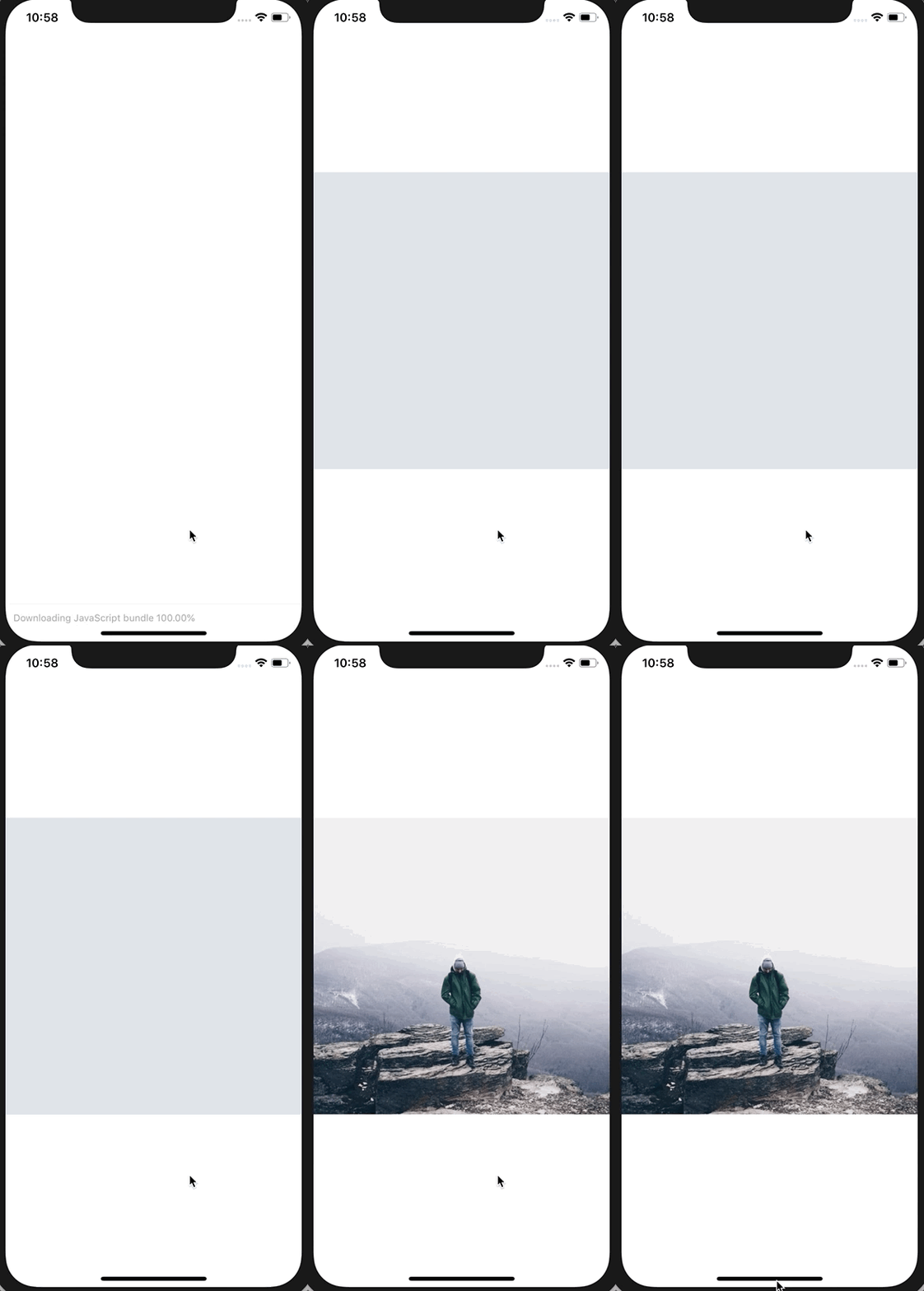
This gives us the first phase of our progressive image loading.

Displaying Thumnail Image
Next we’ll work on displaying a thumbnail version of our image. Generating this image is beyond scope of this tutorial so we’ll assume you’ve got the full size image and the thumbnail version.
First, to our instance of
ProgressiveImage, we'll add a thumbnailSource prop which will take the exact same information as a typical Image source prop. In it we'll pass a smaller version of the image (50 in this case, use whatever you want) and our cache-busting query variable (for demo purposes only).// App.js// ...export default class App extends React.Component { render() { return ( <View style={styles.container}> <ProgressiveImage thumbnailSource={{ uri: `https://images.pexels.com/photos/671557/pexels-photo-671557.jpeg?w=50&buster=${Math.random()}` }} source={{ uri: `https://images.pexels.com/photos/671557/pexels-photo-671557.jpeg?w=${w.width * 2}&buster=${Math.random()}` }} style={{ width: w.width, height: w.width }} resizeMode="cover" /> </View> ); } }
Then we’ll modify our
ProgressiveImage component. First add an imageOverlay style to your styles object.// ProgressiveImage.js// ...const styles = StyleSheet.create({ imageOverlay: { position: 'absolute', left: 0, right: 0, bottom: 0, top: 0, }, container: { backgroundColor: '#e1e4e8', }, });// ...
We’ll then render two
Image components. Before we do that though we're going to use object destructuring to pull a few props off of this.props because we'll be overriding/combining them.// ProgressiveImage.js// ...class ProgressiveImage extends React.Component { render() { const { thumbnailSource, source, style, ...props } = this.props; return ( <View style={styles.container}> <Image {...props} source={thumbnailSource} style={style} /> <Image {...props} source={source} style={[styles.imageOverlay, style]} /> </View> ); } }export default ProgressiveImage;
You can see we pull
thumbnailSource, source, and style off of props. We then use "rest" syntax to capture the rest of the props. This allows us to forward all general purpose props to both of our images and only forward required props to the right component (like the appropriate source).
You’ll notice that we’re combining the passed style and our
styles.imageOverlay in the full size image. This is so that, via absolute positioning, the image will coverup the thumbnail version.
Here’s the result:
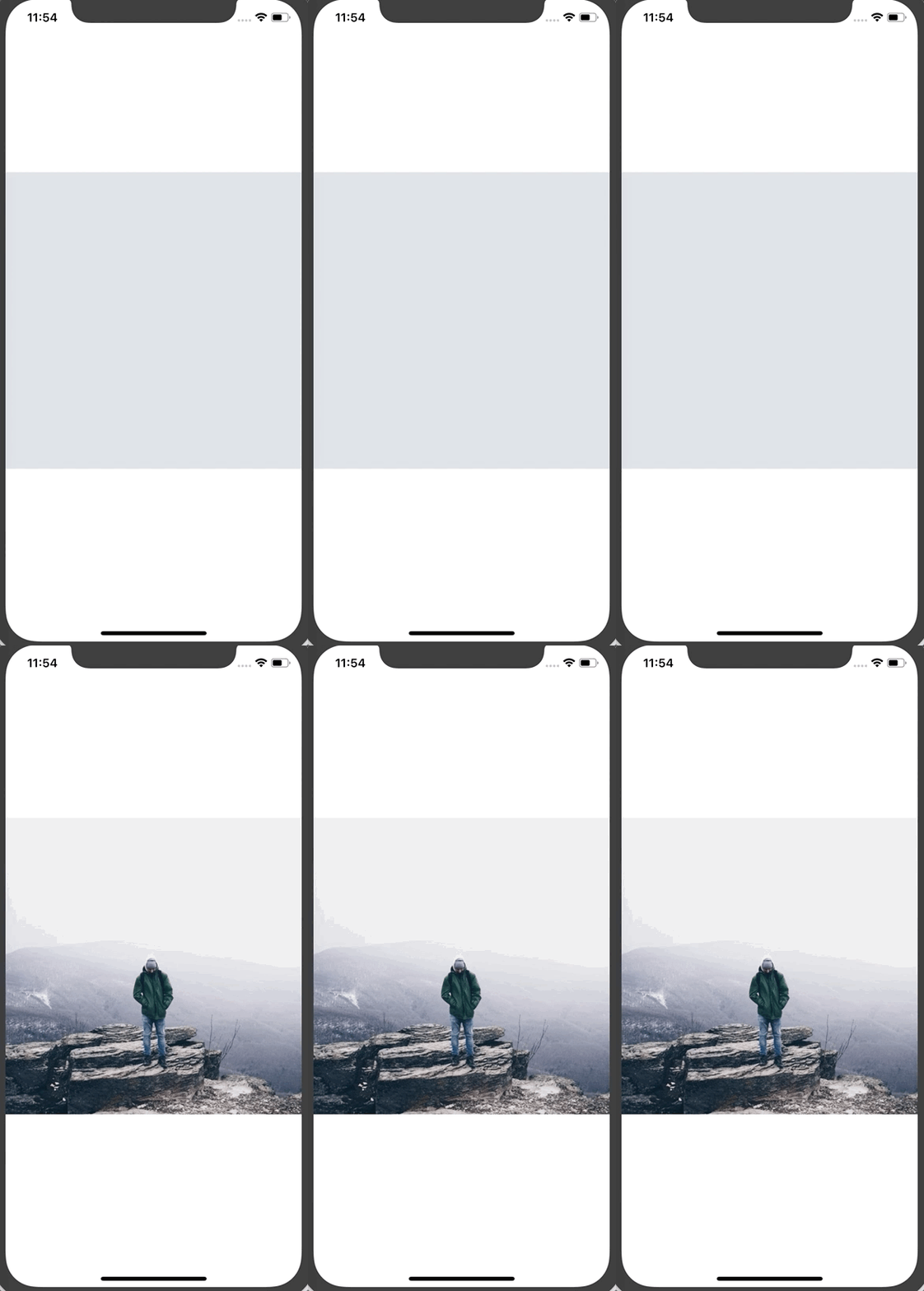
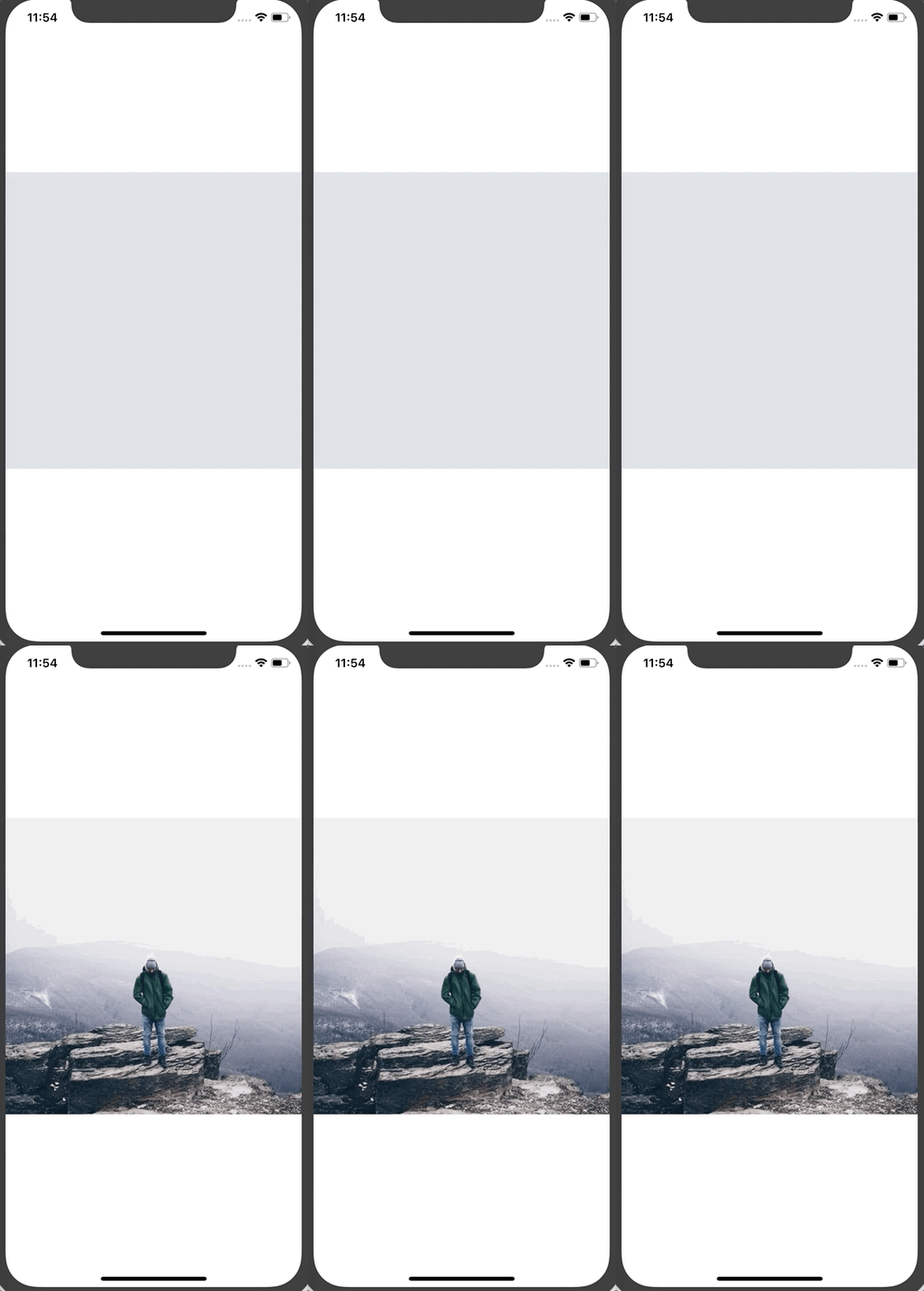
Note: You’ll noticed that the thumbnail image is quite pixelated. You can pass a
blurRadius prop to the thumbnail image to blur it. I took a screenshot so you can see the difference (I'm using a blurRadius of 2 for the example).

You’ll also notice that if we don’t pass a
thumbnailSource to the ProgressiveImage component everything works fine which means we can use this component for all of remote images even if we don't have a thumbnail image.Animating the Transition
The final thing we’ll do is smooth out that transition between the background color, thumbnail image, and full size image. To do that we’ll use the
Animated libary from React Native.
Once you’ve imported
Animated you'll then want replace the Imagecomponents in ProgressiveImage with Animated.Image.
You’ll also want to create two new animated variables on the component, defaulting them to 0.
// ProgressiveImage.jsimport React from 'react';
import { View, StyleSheet, Animated } from 'react-native';// ...class ProgressiveImage extends React.Component {
  thumbnailAnimated = new Animated.Value(0);  imageAnimated = new Animated.Value(0);  render() {
    const {
      thumbnailSource,
      source,
      style,
      ...props
    } = this.props;    return (
      <View style={styles.container}>
        <Animated.Image
          {...props}
          source={thumbnailSource}
          style={style}
          blurRadius={2}
        />
        <Animated.Image
          {...props}
          source={source}
          style={[styles.imageOverlay, style]}
        />
      </View>
    );
  }
}
These
Animated.Values will be used to drive the opacity of the images. When the thumbnail loads we'll set thumbnailAnimated to 1. When the full size image loads we'll set imageAnimated to 1.// ProgressiveImage.js// ...class ProgressiveImage extends React.Component { thumbnailAnimated = new Animated.Value(0); imageAnimated = new Animated.Value(0); handleThumbnailLoad = () => { Animated.timing(this.thumbnailAnimated, { toValue: 1, }).start(); } onImageLoad = () => { Animated.timing(this.imageAnimated, { toValue: 1, }).start(); } // ... }
These functions will be called via the
onLoad prop of the Animated.Image components.// ProgressiveImage.js// ...class ProgressiveImage extends React.Component { // ... render() { const { thumbnailSource, source, style, ...props } = this.props; return ( <View style={styles.container}> <Animated.Image {...props} source={thumbnailSource} style={[style, { opacity: this.thumbnailAnimated }]} onLoad={this.handleThumbnailLoad} blurRadius={1} /> <Animated.Image {...props} source={source} style={[styles.imageOverlay, { opacity: this.imageAnimated }, style]} onLoad={this.onImageLoad} /> </View> ); } }export default ProgressiveImage;
That results in our final progressive image loading.
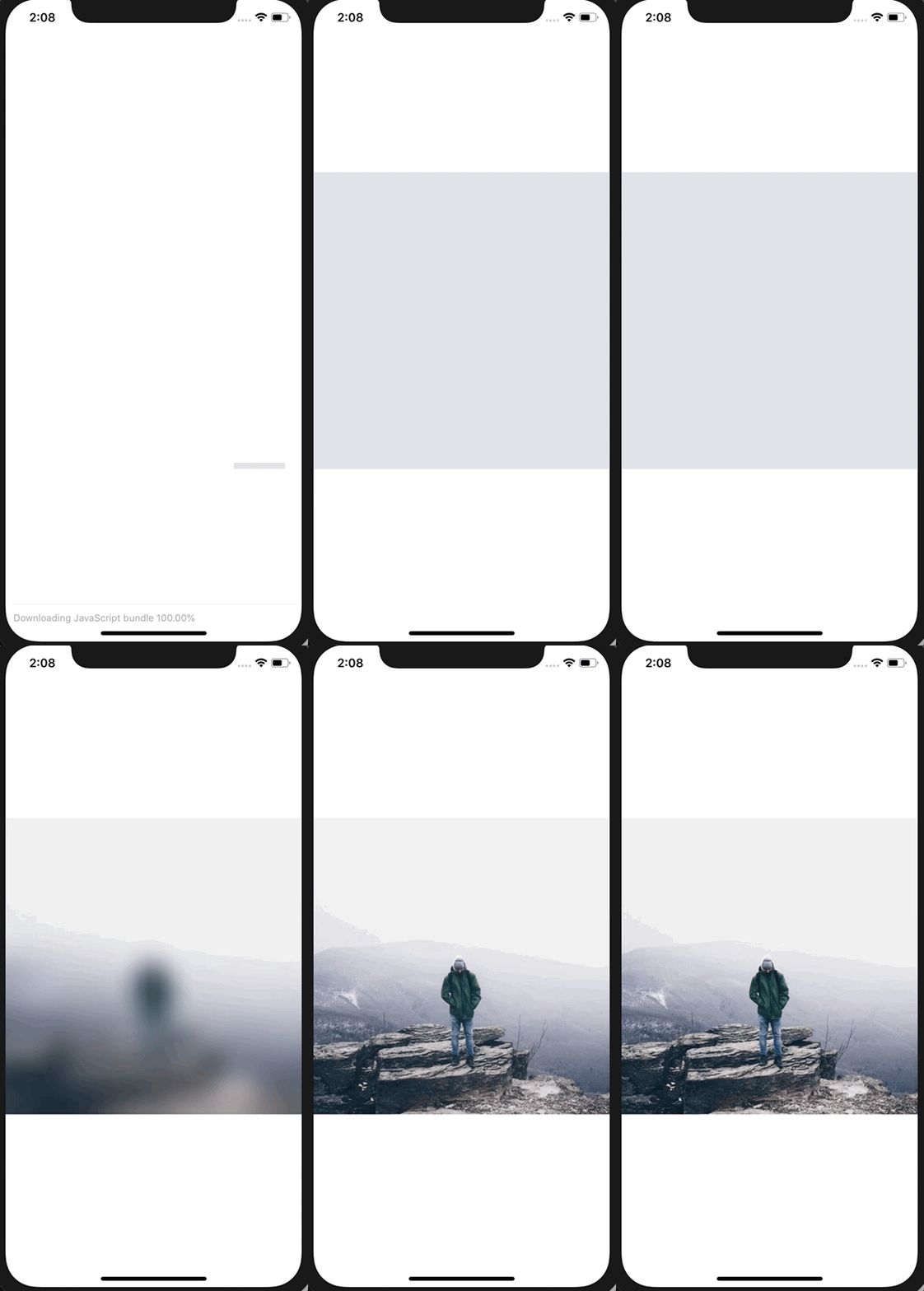
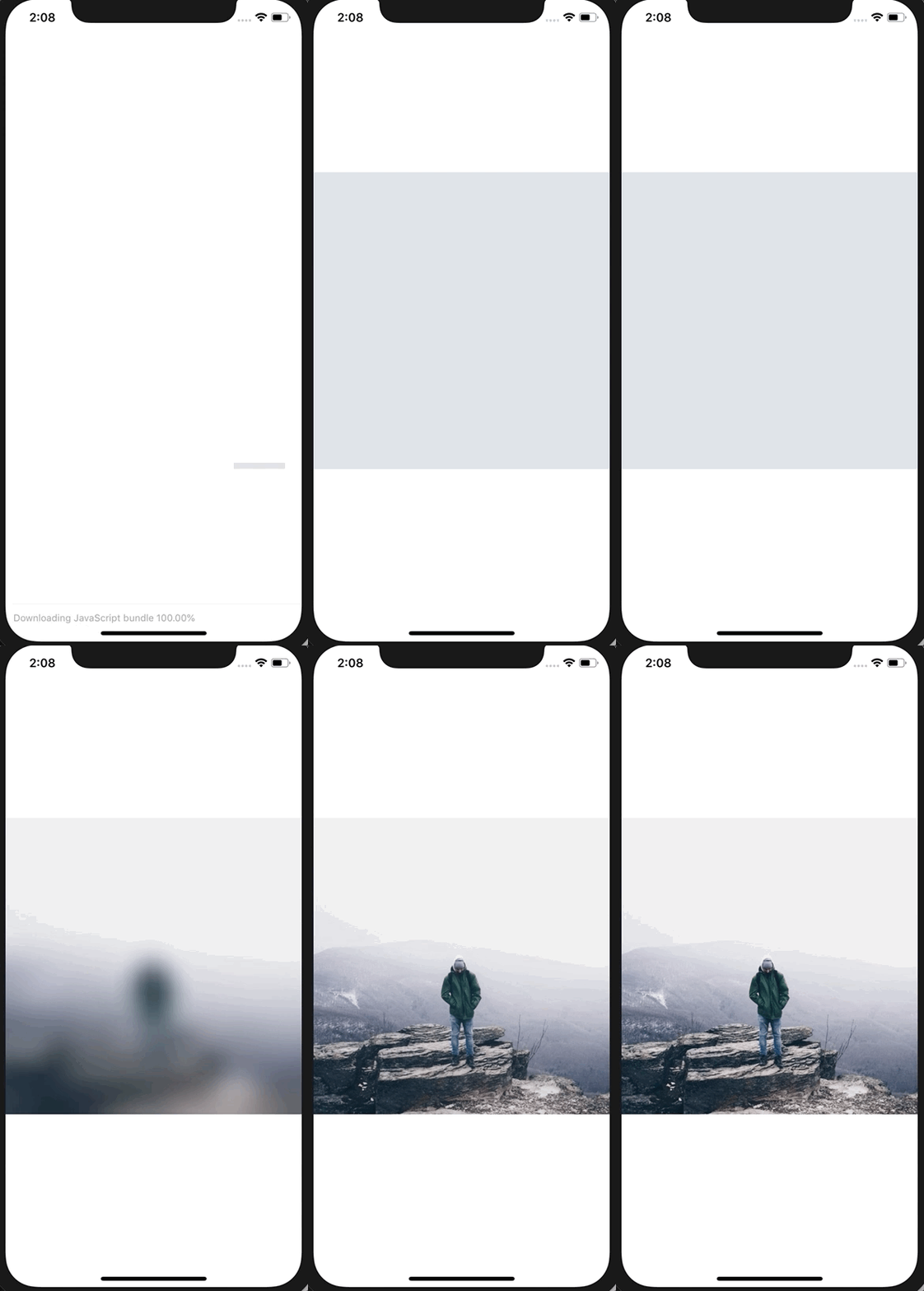
The final code can be found on Github.
If you're attempting to lose kilograms then you certainly have to start following this totally brand new personalized keto meal plan diet.
ReplyDeleteTo create this keto diet service, licensed nutritionists, personal trainers, and professional cooks united to develop keto meal plans that are useful, decent, cost-efficient, and satisfying.
Since their grand opening in early 2019, 100's of individuals have already completely transformed their body and health with the benefits a proper keto meal plan diet can offer.
Speaking of benefits: clicking this link, you'll discover 8 scientifically-tested ones provided by the keto meal plan diet.