React Native ScrollView

The ScrollView is a generic scrollable container, which scrolls multiple child components and views inside it. In the ScrollView, we can scroll the components in both direction vertically and horizontally. By default, the ScrollView container scrolls its components and views in vertical. To scroll its components in horizontal, it uses the props horizontal: true (default, horizontal: false).

Props of ScrollView

alwaysBounceVerticalonScrollhorizontal
contentContainerStylescrollEnabledbouncesZoomzoomScale
onScrollBeginDragonContentSizeChangemaximumZoomScaleminimumZoomScale
onScrollEndDragcenterContentcontentInsetrefreshControl
pagingEnabledscrollsToTopsnapToAlignmentshowsHorizontalScrollIndicator
snapToStartsnapToEndindicatorStyleshowsHorizontalScrollIndicator

React Native ScrollView Example

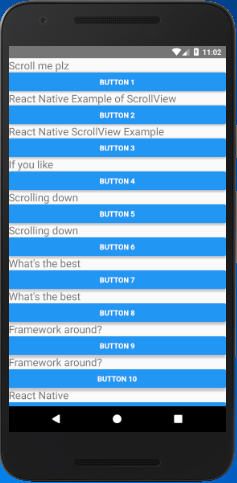
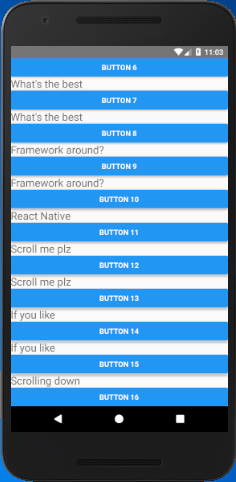
In this example, we create a vertical ScrollView using Text and Button components.
App.js

  1. import React, { Component } from 'react';  
  2. import { AppRegistry, ScrollView, Image, Text, Button, StyleSheet } from 'react-native';  
  3.   
  4. export default class ScrolledViewExample extends Component {  
  5.     onPressButton() {  
  6.         alert('You clicked the button!')  
  7.     }  
  8.   
  9.     render() {  
  10.         return (  
  11.             <ScrollView >  
  12.                 <Text style={{fontSize:20}}>Scroll me plz</Text>  
  13.                 <Button title={'Button 1'} onPress={this.onPressButton} />  
  14.                 <Text style={{fontSize:20}}>React Native Example of ScrollView</Text>  
  15.                 <Button title={'Button 2'} onPress={this.onPressButton}/>  
  16.                 <Text style={{fontSize:20}}>React Native ScrollView Example</Text>  
  17.                 <Button title={'Button 3'} onPress={this.onPressButton}/>  
  18.                 <Text style={{fontSize:20}}>If you like</Text>  
  19.                 <Button title={'Button 4'} onPress={this.onPressButton}/>  
  20.                 <Text style={{fontSize:20}}>Scrolling down</Text>  
  21.                 <Button title={'Button 5'} onPress={this.onPressButton}/>  
  22.                 <Text style={{fontSize:20}}>Scrolling down</Text>  
  23.                 <Button title={'Button 6'} onPress={this.onPressButton}/>  
  24.                 <Text style={{fontSize:20}}>What's the best</Text>  
  25.                 <Button title={'Button 7'} onPress={this.onPressButton}/>  
  26.                 <Text style={{fontSize:20}}>What's the best</Text>  
  27.                 <Button title={'Button 8'} onPress={this.onPressButton}/>  
  28.                 <Text style={{fontSize:20}}>Framework around?</Text>  
  29.                 <Button title={'Button 9'} onPress={this.onPressButton}/>  
  30.                 <Text style={{fontSize:20}}>Framework around?</Text>  
  31.                 <Button title={'Button 10'} onPress={this.onPressButton}/>  
  32.                 <Text style={{fontSize:20}}>React Native</Text>  
  33.                 <Button title={'Button 11'} onPress={this.onPressButton}/>  
  34.                 <Text style={{fontSize:20}}>Scroll me plz</Text>  
  35.                 <Button title={'Button 12'} onPress={this.onPressButton} />  
  36.                 <Text style={{fontSize:20}}>Scroll me plz</Text>  
  37.                 <Button title={'Button 13'} onPress={this.onPressButton}/>  
  38.                 <Text style={{fontSize:20}}>If you like</Text>  
  39.                 <Button title={'Button 14'} onPress={this.onPressButton}/>  
  40.                 <Text style={{fontSize:20}}>If you like</Text>  
  41.                 <Button title={'Button 15'} onPress={this.onPressButton}/>  
  42.                 <Text style={{fontSize:20}}>Scrolling down</Text>  
  43.                 <Button title={'Button 16'} onPress={this.onPressButton}/>  
  44.             </ScrollView>  
  45.         );  
  46.     }  
  47. }  
  48. // skip this line if you are using Create React Native App  
  49. AppRegistry.registerComponent('AwesomeProject', () => ScrolledViewExample);  

Output:
React Native ScrollView React Native ScrollView

React Native Horizontal ScrollView Example

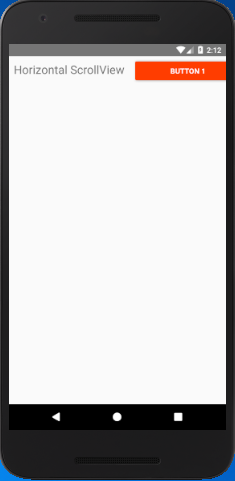
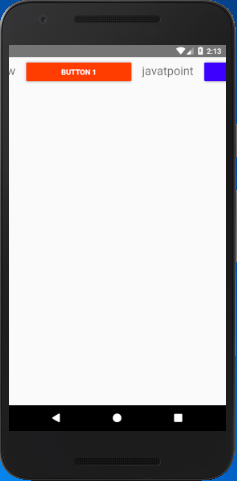
The horizontal ScrollView scrolls the components and views from left to right. It will be implemented by setting the props horizontal to true (horizontal={true}).

App.js

  1. import React, { Component } from 'react';  
  2. import { AppRegistry, ScrollView, View, Image, Text, Button, StyleSheet } from 'react-native';  
  3.   
  4. export default class ScrolledViewExample extends Component {  
  5.     onPressButton() {  
  6.         alert('You clicked the button!')  
  7.     }  
  8.   
  9.     render() {  
  10.         return (  
  11.             <ScrollView  horizontal={true} style={styles.container}>  
  12.                 <Text style={{fontSize:22, padding: 10}}>Horizontal ScrollView</Text>  
  13.                 <View style={[{ width: 220,height: 70,padding: 10 }]}>  
  14.                     <Button  
  15.                         onPress={this.onPressButton}  
  16.                         title="Button 1"  
  17.                         color="#FF3D00"  
  18.                     />  
  19.                 </View>  
  20.                 <Text style={{fontSize:22, padding: 10}}>javatpoint</Text>  
  21.                 <View style={[{ width: 220,height: 70,padding: 10 }]}>  
  22.                     <Button  
  23.                         onPress={this.onPressButton}  
  24.                         title="Button 2"  
  25.                         color="#3D00FF"  
  26.                     />  
  27.                 </View>  
  28.                 <Text style={{fontSize:22, padding: 10}}>React Native ScrollView Example</Text>  
  29.                 <View style={[{ width: 220,height: 70,padding: 10 }]}>  
  30.                     <Button  
  31.                         onPress={this.onPressButton}  
  32.                         title="Button 3"  
  33.                         color="#FFFF3D"  
  34.                     />  
  35.                 </View>  
  36.                 <Text style={{fontSize:22, padding: 10}}>If you like</Text>  
  37.                 <View style={[{ width: 220,height: 70,padding: 10 }]}>  
  38.                     <Button  
  39.                         onPress={this.onPressButton}  
  40.                         title="Button 4"  
  41.                         color="#FF3DFF"  
  42.                     />  
  43.                 </View>  
  44.                 <Text style={{fontSize:22, padding: 10}}>Scrolling horizontal</Text>  
  45.                 <View style={[{ width: 220,height: 70,padding: 10 }]}>  
  46.                     <Button  
  47.                         onPress={this.onPressButton}  
  48.                         title="Button 5"  
  49.                         color="#3DFF00"  
  50.                     />  
  51.                 </View>  
  52.             </ScrollView>  
  53.         );  
  54.     }  
  55. }  
  56. const styles = StyleSheet.create({  
  57.     container:{  
  58.         flex: 1,  
  59.     },  
  60. /*    buttonStyle:{ 
  61.         height: 50, 
  62.         width: 70, 
  63.     }*/  
  64. })  
  65. // skip this line if you are using Create React Native App  
  66. AppRegistry.registerComponent('AwesomeProject', () => ScrolledViewExample);  

Output:
React Native ScrollView React Native ScrollView

Comments

  1. The details that you mentioned regarding scroll view in react native is really great. I have gone through all the screenshots and the code also that you attached as sample and I believe that nothing could explain better than this.
    I was searching for react native development company and got your blog.
    Thanks sharing such a great blog.

    ReplyDelete

Post a Comment

Thank You.

Popular Posts

What are the Alternatives of device UDID in iOS? - iOS7 / iOS 6 / iOS 5 – Get Device Unique Identifier UDID

Get Device Unique Identifier UDID Following code will help you to get the unique-device-identifier known as UDID. No matter what iOS user is using, you can get the UDID of the current iOS device by following code. - ( NSString *)UDID { NSString *uuidString = nil ; // get os version NSUInteger currentOSVersion = [[[[[UIDevice currentDevice ] systemVersion ] componentsSeparatedByString: @" . " ] objectAtIndex: 0 ] integerValue ]; if (currentOSVersion <= 5 ) { if ([[ NSUserDefaults standardUserDefaults ] valueForKey: @" udid " ]) { uuidString = [[ NSUserDefaults standardDefaults ] valueForKey: @" udid " ]; } else { CFUUIDRef uuidRef = CFUUIDCreate ( kCFAllocatorDefault ); uuidString = ( NSString *) CFBridgingRelease ( CFUUIDCreateString ( NULL ,uuidRef)); CFRelease (uuidRef); [[ NSUserDefaults standardUserDefaults ] setObject: uuidString ForKey: @" udid " ]; [[ NSUserDefaults standardUserDefaults ] synchro...

16 AWS Gotchas

16 AWS Gotchas In January I launched the MVP for my own startup,  Proximistyle , which helps you find what you’re looking for nearby. On advice from friends and industry contacts I chose AWS as my cloud provider. Having never had to set up my own cloud infrastructure before, the learning curve to get from no experience to a stable VPC system I was happy with was significantly steeper than expected, and had its fair share of surprises. #1 Take advantage of the free resources offered AWS offers a free tier for new accounts. If you have recently bought a domain and set up a company you qualify for the free tier for a year. Additionally, if you are a bootstrapped startup you can apply for  the Startup Builders package  and get $1000 in AWS credits. After doing the above, you’re now ready to get started with setting up the AWS infrastructure for your startup. #2 Set up billing budgets and alerting The very first thing you should do after setting up billing, is enabling a budge...

Ultimate Folder Structure For Your React Native Project

  Ultimate Folder Structure For Your React Native Project React native project structure React Native is a flexible framework, giving developers the freedom to choose their code structure. However, this can be a double-edged sword for beginners. Though it offers ease of coding, it can soon become challenging to manage as your project expands. Thus, a structured folder system can be beneficial in many ways like better organization, simplified module management, adhering to coding practices, and giving a professional touch to your project. This write-up discusses a version of a folder arrangement that I employ in my React Native projects. This structure is based on best practices and can be modified to suit the specific needs of your project. Before we get into the project structure let’s give credit to @sanjay who has the original idea of the structure but I modify his version of the code, to make it better. Base library axios  — For network calling. react-navigation ...